Posts

Microsoft CRM Portals and SharePoint Integration

Image
Microsoft has officially released Dynamics 365 - Portal version 9.0.10.6 GA. This allows you to integrate SharePoint with the CRM Portal. This feature was available in the old ADXStudio version and is now back. Whoo hoo. To enable SharePoint Integration navigate to your Dynamics 365 Admin page and go to Applications. Then select "Set up SharePoint Integration, and enable it. (Need to be global admin). Once enabled, create your Entity form as normal. Add a subgrid on your CRM Form for your SharePoint documents. Enjoy!

Training to get you started

Follow the link below to get started on Dynamics 365. https://docs.microsoft.com/en-us/dynamics365/

Important changes coming in Dynamics 365 Customer Engagement

Some of the old features are getting depreciated, here is a list of feature that will disappear: Dynamics 365 for Outlook (Outlook client) Service scheduling in Dynamics 365 for Customer Service Dialogs Usage of Parature knowledgebase as the Dynamics 365 knowledge management solution Project Service Finder app Contracts, Contract Line Items, and Contract Templates entities Standard SLAs in Dynamics 365 for Customer Service Relationship Roles Mail Merge Announcements Ready-to-use business processes available through Add Ready to Use Business Processes setting are deprecated Some client APIs EntityMetadata.IsInteractionCentricEnabled property Silverlight (XAP) web resource  Read more about it here

Refresh a Web Resource in Dynamics CRM 2015

Use the following function to refresh the Web Resource on your form. Just remember to pass the parameter for your Web Resource Name. function refreshWebResource(myWebResourceName) { //get and validate current id var currentId = Xrm.Page.data.entity.getId(); if (currentId != null && currentId != undefined && currentId != "") { //get and set the querystring from the control     var querystring = Xrm.Page.getControl(myWebResourceName).getSrc();     Xrm.Page.getControl(myWebResourceName).setSrc(querystring + "&data=" + currentId); } }
Best resource to resolve the dreaded "rsProcessingAborted" error. http://blog.simpletrees.com/2013/04/mscrm-and-dreaded-rsprocessingaborted.html Thanks to Conor Gallagher

MS CRM Address Auto Lookup

Just discovered a great CRM Address Auto Lookup tool on codeplex thanks to  http://mahadeomatre.blogspot.com https://addressautolookup.codeplex.com

Microsoft Dynamics CRM 2015 new Navigation

Image

Microsoft Dynamics CRM 2015 New Features and Some Training

As you are aware Microsoft Dynamics CRM 2015 has been released, below are two very good links for training and new features. This is for CRM end users. http://www.microsoft.com/en-us/dynamics/crm-help-center/default.aspx This is for CRM Administrators. http://www.microsoft.com/en-us/dynamics/crm-setup-and-administration/default.aspx

Import to update failed with following error "You cannot import data to this record because the record was updated in Microsoft CRM after it was exported"

Image
You get the following error message when trying to import data into CRM that you previously exported for reimport. "You cannot import data to this record because the record was updated in Microsoft CRM after it was exported" This happens when you export data for reimport. update the data and reimport the data. Now, if you use the same exported data and update the data again to be reimported, you will get failures for these records already updated in the previous update. You need to export the date again to get a fresh copy of the data with the latest "Modified On" date.

Outlook Appointments Disappearing from MS Dynamics CRM

When using the CRM Outlook Client to track Appointments, an Outlook Appointment will randomly disappear. This will occur when the CRM User has a duplicate email address in the CRM system.  This could be either two Users with the same email address or could be caused by a CRM User associating their User email address to another record; such as an Account, Lead, or Contact. CRM is not designed to know which record is the correct record to resolve the email address to. When we track CRM activities (such as appointments) the application will go to the CRM database and query for entities that have an e-mail address associated to it. This could be a user, contact, account or lead. Once we find an e-mail address that corresponds to the sender or recipients e-mail address we will then associate the activity to that particular entity. If the first found entity happens to be a contact e-mail address the creator of the CRM appointment will automatically be changed to...

How to find the domain controller in your domain.

Ever struggled to identify which computer on the domain is the Domain Controller? Simply run the dos command "echo %logonserver%" and there you have it.

Best Spell Checker for MS CRM

This is by far the best spellchecker I've found for IE. This works great in MS CRM as well.  http://www.speckie.com/

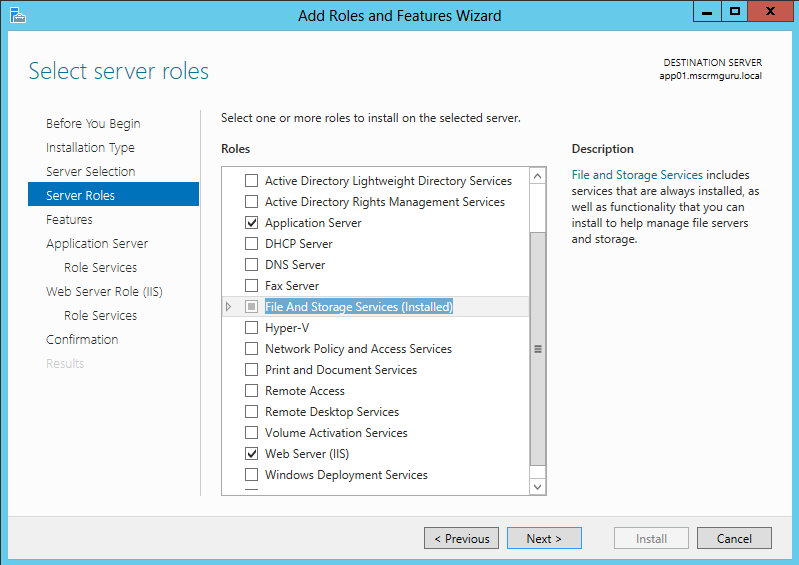
Installing MS Dynamics CRM 2011 on MS Windows Server 2012 - Step by Step

Image
After my initial struggle, and eventually getting MS Dynamics CRM 2011 installed without some or other hack applied, I decided to share how easy it actually is to install. I will give you Step by Step instructions.  This worked for me, you might have some other Roles or Features you require, but I will show you what I think the minimum requirements is. Add "Application Server", "File And Storage Services" and "Web Server". Add all additional roles and features if prompted. Add ".NET Framework 3.5 Features" and "Windows Identity Foundation 3.5". Add "Web Server (IIS) Support" under Application Server -> Roles Services Add "IIS 6 Management Compatibility" under Web Server Role (IIS) -> Roles Services. You don't need "IIS 6  Management Console". Wait for Roles and Feature to complete. It is always good to restart after this. Installation Folder Preparations To make ...

Userfull Troubleshooting tool for MS CRM Dynamics 2011

Some useful tools for debugging MS Dynamics CRM 2011 Issues CRM Tool Source Benefits IE Hang/Crash dumps Debugging tools Snapshot of what was occurring in a CRM when the browser hung or crashed. Debug with Visual Studio CRM Diagnostic Tool http://crmdiagtool2011.codeplex.com/ Useful for trace and devErrors from servers; Output HTML deployment report CRM Client Diagnostics http://support.microsoft.com/kb/830232 Installed with Client; use for initial client diagnosis PSSDiag https://sqlnexus.codeplex.com/wikipage?title=Sql2005PerfStatsScript&referringTitle=Home Product Support Services tool for profiler traces and performance monitoring SQLDiag http://msdn.microsoft.com/en-us/library/ms162833.aspx Collect logs from SQL to monitor specific problems PSS Perf Wait Stats http://www.codeplex.com/Wikipage?ProjectName=...

Exposing Microsoft Dynamics CRM 2011 Externally

Image
There are many ways to expose an internal server externally, and it would be impossible to cover all possible scenarios in one document, this will serve as a general guide for a couple of common scenarios. For Microsoft Dynamics CRM 2011 to be available on the internet, the Application server needs to be accessible from the internet, no matter if you choose to just open up the port or choose to do a full IFD implementation. Port Forwarding Tunnelling Reverse Proxy Port forwarding / tunnelling / reverse proxy are all possible ways of making an Internal IP address available to be accessed from an External (internet facing) IP address. This will all depend what your company current have in place, most of the above can either be achieved through hardware or software. Examples of software that can be used for port forwarding includes Microsoft Forefront Treat Management Gateway (TMG) and Microsoft Forefront Unified Access Gateway. Basically what it comes down to is the following: ...